A multi-track video editor for the browser, Mac and Windows. Animated text, word-by-word captions, filters, effects and 4K export. No account, no watermark, and your footage never leaves your device.
No account · No watermark · No uploads · Works offline
Made for every cut.
01Captions
Captions that keep up, word by word.
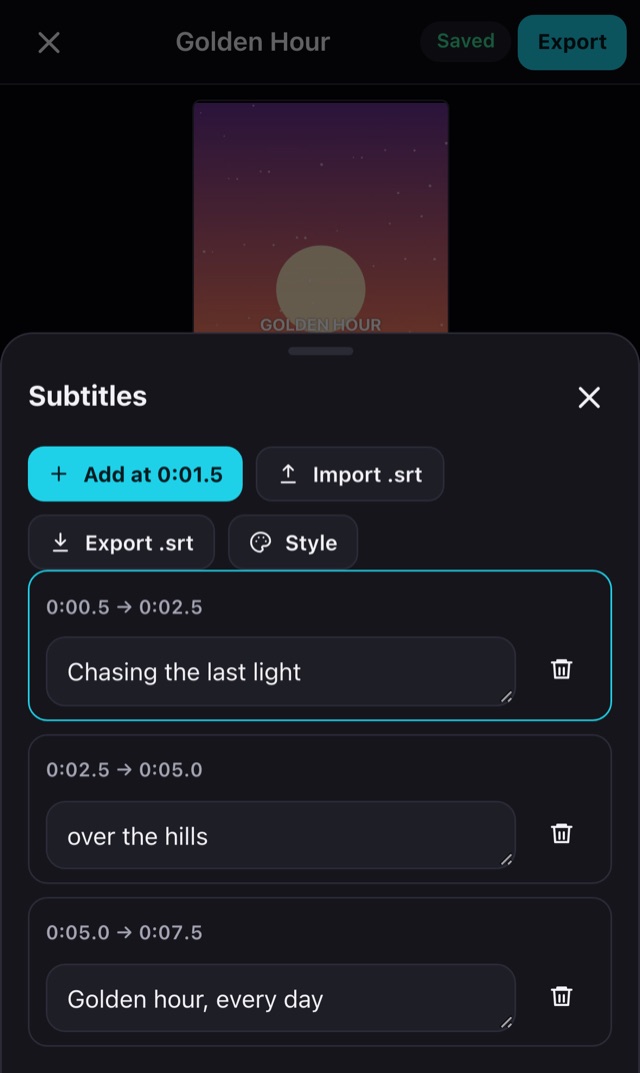
Generate captions from speech in one tap, then make every word light up, pop, bounce or fill in karaoke-style as it’s said. Restyle every caption at once, or import and export .srt files.
Auto captions in many languages
Highlight, Karaoke, Pop, Bounce, Reveal, Box
What you preview is what you export
02Timeline
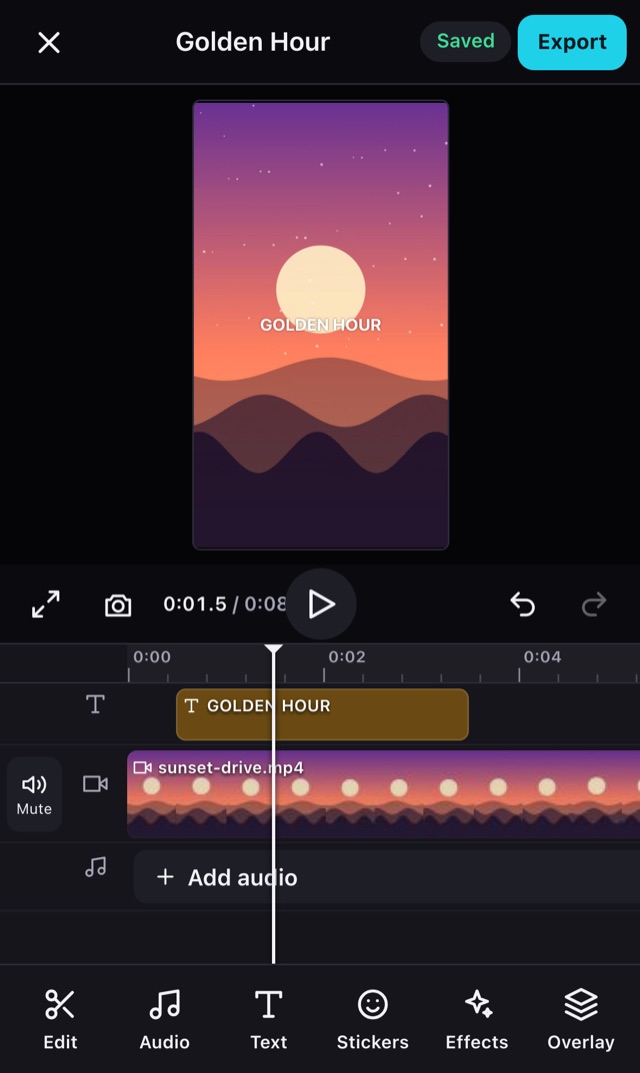
A real multi-track timeline.
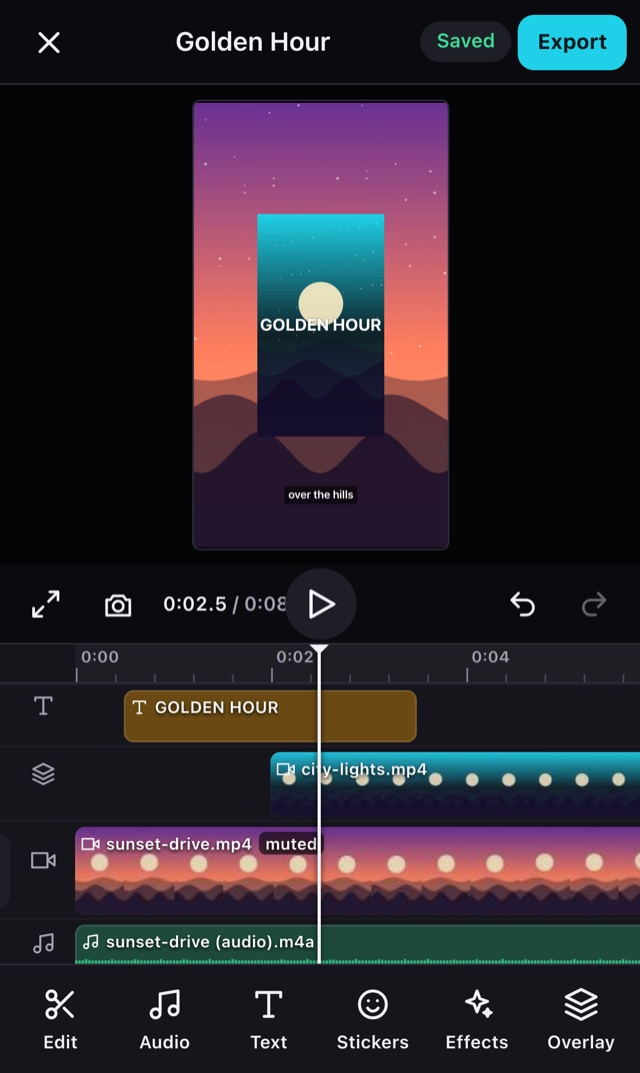
Stack video, overlays, text, stickers, effects and audio on as many tracks as you need. Snap to the playhead, clip edges or beat markers, and undo with a note that says what it undid.
Split, trim, duplicate, reorder, replace
Keyframes for position, scale, opacity and filters
Speed curves, freeze frames and reverse
03On-device AI
Remove the background. No green screen.
An on-device model cuts people out of every frame, so you can drop yourself onto any background. Auto reframe follows people when you change the frame shape, and scene detection splits long clips for you.
Remove BG and green screen
Auto reframe for 9:16, 1:1 and 16:9
Detach vocals from music
04Text
Titles that move.
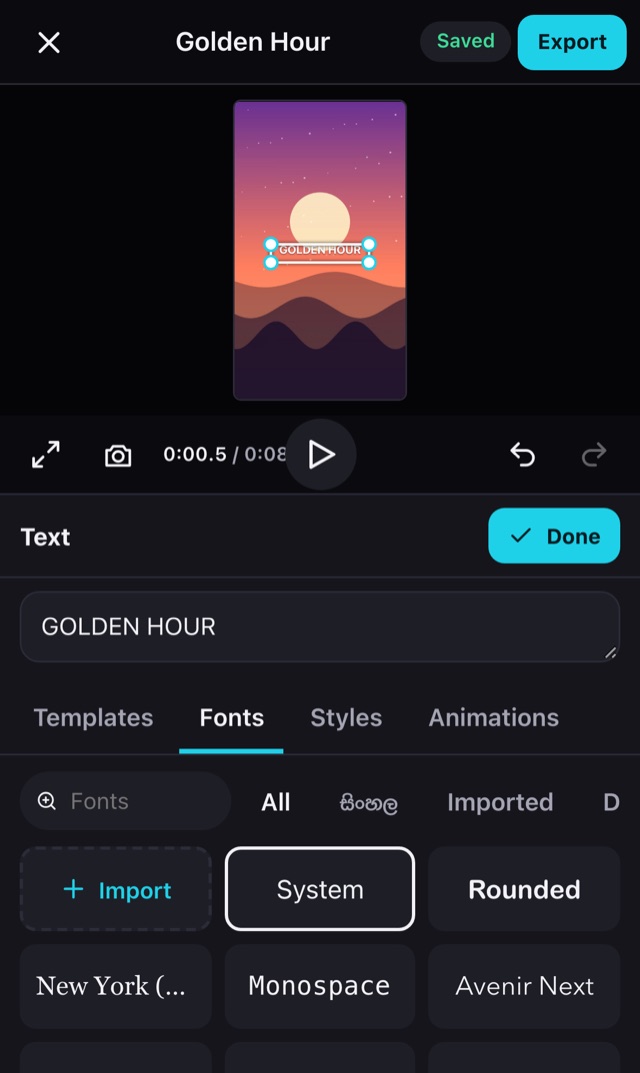
Gradient, neon glow, curved and letter-by-letter text with entrance, exit and loop animations. Bring your own TTF or OTF fonts, and type in Sinhala with Singlish typing and an FM ⇄ Unicode converter.
20+ text animations and templates
Your own fonts
English and සිංහල
And everything else you’d expect
A full audio desk
Extract audio, record voice-overs with a countdown, cut to the beat, keyframe volume, J- and L-cuts and voice effects.
Looks & transitions
20 GPU filters, .cube LUTs, 12 effects and 32 transitions, previewed live on your own clip.
Export anywhere
Up to 4K at 60 fps as MP4, GIF or M4A, with presets for TikTok, Reels, Shorts and YouTube, and several ratios in one go.
Works offline
Install the web app or the desktop app and edit without a connection. Projects save automatically.
Portable backups
Back up a whole project, media included, to one .ffstudio file and restore it on any device.
Smooth on big files
On-device editing copies keep scrubbing and playback smooth, even with long or heavy footage.
How it stacks up.
The popular editors are great. Here’s where FrameFlow is different, feature by feature, on each app’s free plan.
Feature
FrameFlowFree
CapCutFree plan
InShotFree plan
VNFree plan
iMovieFree
The basics
Everything free, no Pro tier
✓
✕
✕
✕
✓
No account needed
✓
~
✓
✓
✓
No watermark on free exports
✓
~
✕
✓
✓
Footage never leaves your device
✓
~
✓
✓
✓
Runs in the browser, no app store
✓
~
✕
✕
✕
Mac and Windows apps
✓
✓
✕
~
~
Portable project backup file
✓
~
✕
~
✓
Editing
Multi-track timeline
✓
✓
~
✓
~
Keyframe animation
✓
✓
✓
✓
✕
Speed curves
✓
✓
✓
✓
✕
Auto reframe (follows people)
✓
✓
✕
✕
✕
Scene detection (auto split)
✓
~
✕
✕
✕
Text & captions
Auto captions
✓
✓
PRO
✓
✕
Word-by-word caption styles
✓
✓
✕
~
✕
SRT subtitle import
✓
~
✕
✕
✕
Sinhala UI, Singlish typing, FM ⇄ Unicode
✓
✕
✕
✕
✕
Audio & look
Beat detection & cut to beat
✓
✓
✕
✓
✕
Remove background (people)
✓
✓
PRO
~
✕
Import .cube LUTs
✓
~
✕
✓
✕
Export
Up to 4K · 60 fps
✓
✓
✓
✓
✓
Several ratios in one export
✓
✕
✕
✕
✕
YouTube chapters helper
✓
✕
✕
✕
✕
✓ Included free~ Partly, or with limitsPRO Paid tier✕ Not available
Free plans as we understand them in November 2026; other apps change their plans often, so check before you decide. FrameFlow’s auto captions send the clip’s audio to a captioning service; everything else runs on your device. Product names are trademarks of their owners.
Learn it in minutes.
Short, step-by-step lessons, from installing the app to exporting a polished video.
01Install FrameFlowBeginner
On a computer, download the Mac or Windows app below, or open app.frameflow.shahiruroshen.com in Chrome or Edge and click the install icon in the address bar.
On iPhone, open app.frameflow.shahiruroshen.com in Safari, tap Share → Add to Home Screen → Add.
Launch FrameFlow from its icon. It opens full-screen and works offline.
02Start your first projectBeginner
On Home, tap New project and pick your clips in the order you want them.
Tap Ratio in the bottom tools to switch between 9:16, 1:1, 16:9 and more.
Tap the title to rename it. Everything saves automatically; watch for Saved in the top bar.
03Trim, split & arrangeBeginner
Drag the timeline to scrub; pinch to zoom in for frame-accurate cuts.
Tap a clip, then drag its white handles to trim.
Move the playhead to a cut point and tap Split. Drag a selected clip to reorder it.
04Add text and make it moveBeginner
Tap Text and type your words.
Use Templates, Fonts and Styles for colour, outline, glow, gradient and curve.
Open Animations and pick an In, Out and optional Loop animation. Drag, pinch and twist on the preview to place it.
05Auto captions, word by wordIntermediate
Tap Captions → Auto, choose the language and a caption look, then start.
Tap Select all to style to change the font, size and colour of every caption at once.
Open a caption → Animations → Words for Highlight, Karaoke, Pop, Bounce, Reveal or Box.
06Music, voice-over & beatsIntermediate
Tap Audio to import music, add a sound effect, or Extract the sound from a video.
Audio → Voice-over records after a 3-2-1 countdown, right at the playhead.
Audio → Beats drops markers on every beat; Cut video at beats splits the main track to the music.
07Remove BG & green screenAdvanced
Put the background on the main track and add the person clip with Overlay.
Select the overlay and tap Remove BG, or use Filters → Green screen if you shot on green.
Fine-tune with Blend and Mask.
08Export & back upBeginner
Tap Export and pick a preset (TikTok, Reels, Shorts, YouTube) or set resolution and fps yourself.
Choose MP4, GIF or Sound only. Also export as makes extra ratios in one go.
On Home, tap ⋯ on a project → Back up to save a .ffstudio file you can restore anywhere.
Which Mac do I have? Open the Apple menu → About This Mac. If it says Chip: Apple M…, pick Apple silicon; if it says Processor: Intel, pick Intel.
The desktop apps aren’t signed by Apple or Microsoft yet. On a Mac, if it won’t open the first time, go to System Settings → Privacy & Security and click Open Anyway. On Windows, choose More info → Run anyway.
Your footage stays yours.
Every frame is decoded, previewed and exported on your own device, by the same engine, so what you scrub is exactly what you export. Projects are saved locally and can be backed up to a single file.
 Video editor · Free · v0.3.0